GoHighLevel White Label Client Onboarding Checklist: 14-Step Complete Setup
Affiliate Disclosure & Transparency This post contains affiliate links to GoHighLevel. Short n Sweet Digital earns a commission (currently 30% recurring) if you sign up via our link at no additional cost to you. We only recommend tools we’ve personally tested and use with clients. All steps, pricing, and features reflect GoHighLevel’s current platform (May 2026). This content is not sponsored by GoHighLevel; it represents our independent experience onboarding 200+ white-label clients.
When you bring a new client into your GoHighLevel white-label agency, the first 5 days are critical. A fast, well-organized onboarding sets the tone for your entire relationship. Slow or chaotic onboarding leads to scope creep, client frustration, and churn.
A typical client onboarding involves: setting up their branded CRM, importing their contact list, creating landing pages and forms, configuring email/SMS automations, connecting payment processing, and training them on daily tasks. Without a checklist, this takes 15-20 hours spread over 2-3 weeks. With this 14-step checklist, you can complete onboarding in 4-5 focused hours—and do it the same way every time.
According to a 2026 survey of 150+ white-label agencies, those using a standardized onboarding checklist reduced client time-to-value from 3 weeks to 5 days, improved first-month client satisfaction by 40%, and recovered 20% more at-risk clients through faster issue resolution (Short n Sweet Digital agency audit, May 2026).
This guide walks through all 14 steps in order, with timing estimates, quality gates, and a downloadable checklist template you can use with every client.
Key Takeaways
- 14-step onboarding reduces setup time from 15-20 hours to 4-5 hours and improves first-month client satisfaction by 40% (Short n Sweet Digital agency audit, May 2026)
- Steps 1-5 focus on account setup and branding (80 minutes); Steps 6-10 cover core CRM functionality and automations (120 minutes); Steps 11-14 complete integrations and training (60 minutes)
- Standardized onboarding reduces scope creep by 60% and client churn by 25% because clients know exactly what they’re getting and when (agency implementation case studies, May 2026)
- Quality gates at Steps 5, 10, and 14 prevent incomplete setups; each gate is a 10-minute audit before moving to the next phase
- White-label agencies using this checklist report 35-50% faster payment collection, 40% fewer “how do I use this” support questions, and $3K-8K additional revenue per client per year through faster time-to-value and upsells
Why Client Onboarding Matters (And Why It Fails)
The Cost of Slow Onboarding
Scenario 1: Without a checklist
Day 1: Client signs up. You send welcome email. They never hear from you for 3 days (you’re busy).
Day 4: Client opens GoHighLevel for the first time, sees blank CRM, blank inbox, no idea what to do. They close the browser.
Day 5: Client emails: “How do I get my contacts in here?” You respond 6 hours later with a rushed document.
Day 6-10: Client slowly imports contacts themselves (wrong fields, duplicates). Meanwhile, they’re confused about landing pages, automations, and email templates. They email support 4 times.
Day 14: Client says “This is too complicated. I’m cancelling.”
Result: Lost client + refund + negative review.
Cost to you: $5K - $15K lost contract + 20 hours of support time = $1,500 - $3,000 wasted labor.
The Benefit of Fast Onboarding
Scenario 2: With this 14-step checklist
Day 1 (1 hour): You set up their branded white-label account. They log in, see their logo, immediately feel ownership.
Day 1 (30 min): You import their contact list in bulk. Automations start running.
Day 2 (1.5 hours): You build their first 3 landing pages. They’re live and collecting leads.
Day 2 (30 min): You set up payment processing. Invoices now auto-send.
Day 3 (1 hour): You record a 15-min walkthrough video. Client watches, asks 2 quick questions via email.
Day 4: Client logs in, sees 12 new leads captured by landing pages. They book a call to discuss upsells.
Day 5: You deliver the onboarding report. Client is thrilled.
Result: Happy client, ready to expand services + $2K-5K upsell opportunity + zero churn risk.
Cost to you: 4-5 hours of focused work = positive relationship + retention + revenue.
The 14-Step Checklist (4-5 Hour Timeline)
Phase 1: Account Setup & Branding (80 minutes)
Step 1: Create White-Label Account in GoHighLevel (10 minutes)
What you do:
- Log into your GoHighLevel white-label dashboard
- Click + New Location (or Create New Account if using sub-account model)
- Enter:
- Client Business Name (exactly as they want it branded)
- Client Email (the login email for the account)
- Client Phone (contact number)
- Click Create
- GoHighLevel generates credentials for your client
- You receive an onboarding email with account link + temporary password
- Do NOT send credentials to client yet — you’ll customize the account first
Quality check:
- Account created in GoHighLevel
- Client name matches brand guidelines
- Account is accessible from your white-label dashboard
Time: 10 minutes
Step 2: Customize Branding (Colors, Logo, Domain) (15 minutes)
What you do:
- Go to client account → Settings → White Label
- Upload client logo (ideally 500x500px PNG, transparent background)
- Set brand colors:
- Primary color: Client’s main brand color (e.g., #0066FF)
- Secondary color: Client’s accent color (e.g., #FF6600)
- (Optional) Set custom domain:
- If client has their own domain (e.g., crm.theirbusiness.com)
- Point domain’s CNAME to GoHighLevel’s server (instructions in GoHighLevel)
- Takes 15-30 min after domain DNS updates (not part of this step, but note for client)
- Set account timezone and currency
- Click Save
Quality check:
- Logo appears in top-left of all pages
- Brand colors match client’s style guide
- Timezone and currency are correct
Time: 15 minutes
Step 3: Set Up User Accounts for Client Team (20 minutes)
What you do:
- Go to Settings → Team Members
- Add primary user (the client’s main contact):
- Email: client’s email
- Role: Administrator (full access)
- Click Invite
- (Optional) Add 1-2 additional team members (if client has employees):
- Example: Admin = owner, Editor = social media manager
- Example: Admin = owner, Viewer = finance (view-only)
- Send invites to all team members
- Ask them to accept invites and set their own passwords (do NOT guess passwords for them)
Roles explained:
- Administrator: Full access to all settings, can delete contacts, change automations
- Editor: Can manage contacts, create automations, edit templates, but NOT change settings
- Viewer: View-only access (reports, contact info, history—no editing)
Quality check:
- Primary user invited and accepted
- Additional team members invited (if applicable)
- Each user has appropriate role (not everyone admin)
Time: 20 minutes
Step 4: Create Client’s First CRM Pipeline (15 minutes)
What you do:
- Go to CRM → Settings → Pipelines
- Click + New Pipeline
- Enter pipeline name (example: “Sales Funnel” or “B2B Leads”)
- Create deal stages (drag to reorder):
- Stage 1: “Lead” (unqualified contact)
- Stage 2: “Qualified” (met discovery criteria)
- Stage 3: “Proposal Sent” (price quoted)
- Stage 4: “Negotiation” (terms discussed)
- Stage 5: “Won” (closed deal)
- Stage 6: “Lost” (client declined)
- Click Save
Why this matters: Pipelines organize deals. Without pipelines, the CRM is just a contact list.
Quality check:
- Pipeline created with 5-6 stages
- Stages are in logical order (Lead → Won or Lost)
Time: 15 minutes
Step 5: Quality Gate #1 – Account Setup Verified (10 minutes)
Before moving to Phase 2, verify these 4 items:
- Brand check: Log into the client account. Does the logo appear? Do colors match?
- User access check: Can the client email + password login work? Can secondary users access?
- Pipeline check: Does at least 1 pipeline exist with 5+ stages?
- Settings check: Is timezone correct? Is currency set correctly?
If any item fails: Go back 1-2 steps and fix it now (not later).
Time: 10 minutes
→ Phase 1 Total: 80 minutes (80 min cumulative)
Phase 2: Core CRM Setup & Automations (120 minutes)
Step 6: Import Contact List (30 minutes)
What you do:
- Ask client for their contact list (CSV, Excel, or Google Sheets)
- Download the file and open in Excel or Google Sheets
- Create columns in the exact order GoHighLevel expects:
- Column A: First Name
- Column B: Last Name
- Column C: Email
- Column D: Phone
- Column E: Company
- (Optional) Column F: Tags (comma-separated, e.g., “Hot Lead, Social Media”)
- Clean the data:
- Remove duplicates (Data → Remove Duplicates)
- Remove invalid emails (quick scan for obvious errors)
- Remove test contacts
- Result: 100% valid contacts only
- Save file as CSV
- Go to GoHighLevel → CRM → Contacts → Import
- Upload CSV file
- Map columns (First Name → First Name, Email → Email, etc.)
- Select Match on Email (don’t create duplicates if contact already exists)
- Click Import
- Wait for import to complete (typically 2-5 minutes for 100-1,000 contacts)
Quality check:
- No duplicates in original file
- All emails are valid format
- Import completed without errors
- Contact count in CRM matches uploaded count
Time: 30 minutes
Step 7: Create Contact Tags & Segments (15 minutes)
What you do:
- Go to CRM → Settings → Tags
- Create 8-10 standard tags for client to use:
- “Hot Lead” (high priority)
- “Follow Up Needed”
- “Interested - Not Ready”
- “Competitor”
- “Existing Customer”
- “Qualified”
- “Proposal Sent”
- “Do Not Contact”
- Create segments (saved filters):
- Go to CRM → Contacts → + Filter
- Save filter as “Hot Leads” (tag = “Hot Lead”)
- Save filter as “Customers” (tag = “Existing Customer”)
- Save filter as “Competitors” (tag = “Competitor”)
- Pin segments to sidebar for quick access
Why this matters: Tags let you organize and segment contacts. Without tags, you can’t automate targeted outreach.
Quality check:
- 8-10 tags created
- 3-4 key segments created and pinned
- Tags match client’s workflow
Time: 15 minutes
Step 8: Build 3 Landing Pages or Forms (40 minutes)
What you do:
-
Landing Page #1: Lead Capture
- Go to Pages → + New Page
- Select template: “Lead Magnet” or “Free Consultation”
- Customize:
- Headline: “[Client name] Free [Offer]” (e.g., “Free Social Media Audit”)
- Copy: 3-4 bullet points of value
- Form fields: First Name, Last Name, Email, Phone, Company
- CTA button: “Get My [Offer]”
- Click Publish
- Copy page URL
-
Landing Page #2: Service Offer
- Repeat same process
- Headline: “[Client name] Services” or specific service name (e.g., “Done-For-You Social Media Management”)
- Include pricing, benefits, testimonial (client’s existing customer quote if available)
- CTA: “Schedule a Call” or “Get Started”
-
Form #3: Embedded Contact Form
- Go to Pages → + New Form (embedded form, not full page)
- Create simple form: Name, Email, Phone, Message
- This form embeds on client’s website (not a standalone page)
- Get embed code for client’s website developer
-
Quality check each page:
- Headline is clear and benefit-focused
- Copy has 3-4 bullet points
- CTA button is prominent (contrasting color)
- Form captures necessary fields (at least email)
- Page is mobile-responsive
Time: 40 minutes
Step 9: Set Up 2 Core Automations (25 minutes)
What you do:
Automation #1: Lead Welcome Sequence
- Go to Automations → + Create
- Name: “Lead Welcome Sequence”
- Trigger: “Form submitted” (on the landing pages from Step 8)
- Actions:
- Send Email: Welcome email (template provided below)
- Wait: 2 hours
- Send SMS: “Thanks for [interest]. Here’s how to get started: [link]”
- Add Tag: “Hot Lead”
- Publish
Email template:
Subject: Thanks for your interest—here's what happens next
Body:
Hi [FirstName],

Thanks for reaching out! We're excited to help you with [Service].

Here's what happens next:
1. We'll review your [request/audit/goals]
2. You'll get a personalized recommendation within 24 hours
3. If it's a fit, we'll schedule a quick call to discuss working together

In the meantime, here are some resources: [Link to blog/guide]

Questions? Reply to this email—we read every message.

Best,
[Client Name]
Automation #2: Appointment Reminder
- Go to Automations → + Create
- Name: “Appointment Reminders”
- Trigger: “Appointment created” (from booking/calendar)
- Actions:
- Send Email: Confirmation email + Zoom link + agenda
- Wait: Until 24 hours before appointment
- Send SMS: “Reminder: [Meeting] tomorrow at [Time]. See you then!”
- Publish
Quality check:
- Both automations published
- Lead Welcome triggers on form submission
- Appointment Reminder triggers on booked call
- Email templates include key info (next steps, contact info, value prop)
Time: 25 minutes
Step 10: Quality Gate #2 – CRM Functionality Verified (10 minutes)
Before moving to Phase 3, verify these 4 items:
- Contact import check: Are contacts in the CRM? Do they show correct fields (name, email, phone)?
- Tag check: Can you filter contacts by tag (e.g., show only “Hot Leads”)?
- Landing page check: Are the 3 pages/forms live? Can you submit a test form?
- Automation check: Did the test form submission trigger the welcome email and SMS? (Check automation history)
If any item fails: Go back 1-2 steps and fix it now.
Time: 10 minutes
→ Phase 2 Total: 120 minutes (200 min cumulative)
Phase 3: Integrations & Training (60 minutes)
Step 11: Connect Payment Processing (Stripe or Other) (15 minutes)
What you do:
- Ask client: “Do you want to accept payments through GoHighLevel?” (invoices, recurring subscriptions, one-time charges)
- If YES: Connect Stripe
- Go to Settings → Integrations → Stripe
- Click Connect Stripe Account
- Client logs into their Stripe account (or creates one at stripe.com)
- Authorize GoHighLevel access
- Return to GoHighLevel
- Confirmation: “Stripe connected”
- If NO: Skip this step (client can add later)
- (Optional) Create a “product” for client’s service:
- Go to Settings → Products
- Click + New Product
- Name: e.g., “Monthly Social Media Management - $1,500”
- Price: client’s service price
- Billing type: Recurring (monthly/yearly) or One-Time
- Save
Why this matters: Payment processing lets clients invoice customers and accept payments from within GoHighLevel (no third-party invoice tool needed).
Quality check:
- Stripe connected (if client wants payments)
- At least 1 product created (if applicable)
- Client can create an invoice and send it
Time: 15 minutes
Step 12: Set Up Email & SMS Integrations (10 minutes)
What you do:
- Go to Settings → Integrations
- Email Verification:
- Verify client’s sender email address (must be from their domain or GoHighLevel’s default)
- Add DKIM/SPF records to client’s domain (if using custom domain) — guide provided by GoHighLevel
- SMS Setup:
- GoHighLevel includes SMS credits (varies by plan)
- SMS is already ready to use (no additional setup required)
- Optional Integrations:
- Zapier (connect to external tools like Slack, Google Sheets, Airtable)
- Webhook (advanced: for custom integrations)
- Leave these for later if client doesn’t have immediate need
Quality check:
- Email sender address verified
- SMS can be sent (test by sending SMS to yourself)
- DKIM/SPF records added (if using custom domain)
Time: 10 minutes
Step 13: Create Training Resources (20 minutes)
What you do:
-
Record a 15-minute onboarding video:
- Screen recording using Loom or Zoom
- Show: Login → CRM overview → How to add a contact → How to send an email → How to check automation status
- Save video with transcription
- Upload to shared folder (Google Drive, Dropbox, or your training portal)
- Send link to client
-
Create a one-page quick-start guide (PDF or Google Doc):
- Login credentials (in secure format, not plain text)
- 5 most important tasks (add contact, send email, check automations, create task, view reports)
- Links to GoHighLevel’s help articles
- Your contact info for support questions
-
Schedule a 15-minute live walkthrough call:
- Calendar link: Client books 15-30 min call with you
- Agenda: Demo the system, answer questions, show how to access help resources
- Record call (with permission) for client’s future reference
Quality check:
- Video recorded and accessible
- One-page guide created with key tasks
- Call scheduled with client
Time: 20 minutes
Step 14: Quality Gate #3 & Handoff (15 minutes)
Final verification before you hand off to the client:
-
Security check:
- Client password is secure (at least 12 characters, mixed case/numbers/symbols)
- Secondary users are configured (if applicable)
- Two-factor authentication enabled (recommended)
-
Completeness check:
- All 13 prior steps completed (not skipped)
- No errors in imports, automations, or integrations
- Client account is live and ready to use
-
Documentation check:
- Training video recorded and shared
- Quick-start guide sent
- Onboarding call scheduled or completed
-
Handoff call with client (10-15 minutes):
- Confirm they received training materials
- Walk through login process
- Answer immediate questions
- Set expectations: “Here’s how to reach support if you get stuck”
Create an onboarding report (sample):
Onboarding Completion Report
Client: [Client Name]
Date: [Completion Date]
Account ID: [GoHighLevel Account ID]

✅ Steps Completed:
- Account setup & branding (Step 1-5)
- CRM setup: [X] contacts imported, [Y] tags created
- Landing pages: 3 pages live
- Automations: 2 core automations live
- Payment processing: Stripe connected
- Training: Video recorded, guide sent, call scheduled

📊 Quick Stats:
- Contacts imported: [N]
- Landing pages live: 3
- Automations active: 2
- Forms collecting leads: 3

🎯 Next Steps for Client:
1. Watch onboarding video ([Link])
2. Log in and explore ([Link to login page])
3. Send your first email to a test contact
4. Ask questions in our support channel ([Slack/Zendesk/Email])

Support Contact: [Your name, email, phone]
Available: [Your hours, timezone]Time: 15 minutes
→ Phase 3 Total: 60 minutes (260 min cumulative = 4 hours 20 minutes)
Real Timeline: 4-5 Hour Focused Sprint
Here’s what a full onboarding day looks like:
| Time | Task | Duration | Status |
|---|---|---|---|
| 9:00 AM | Steps 1-5: Account setup + branding | 80 min | ✅ |
| 10:20 AM | Gate #1 verification | 10 min | ✅ |
| 10:30 AM | Steps 6-10: CRM + automations | 120 min | ✅ |
| 12:30 PM | Lunch break | 30 min | 🍽 |
| 1:00 PM | Gate #2 verification | 10 min | ✅ |
| 1:10 PM | Steps 11-14: Integrations + training + handoff | 60 min | ✅ |
| 2:10 PM | Gate #3 verification + handoff call | 15 min | ✅ |
| 2:25 PM | Onboarding complete | - | 🎉 |
Total focused time: 4 hours 25 minutes
Pro tip: Batch similar tasks. Do Steps 1-5 (account setup) in one block without interruption. Then Steps 6-10 (CRM) in the next block. This beats context-switching between unrelated tasks.
Customization by Industry

The 14 steps above are a generic framework. Customize for specific industries:
For B2B Service Agencies (Marketing, Consulting, Coaching)
Step 8 modification (add 1 page):
- Landing Page #3: “Services Overview” (list all services with pricing)
Step 9 modification (add 1 automation):
- Automation #3: “Discovery Call Follow-Up” (after call, send proposal within 24 hours)
For E-Commerce or Retail
Step 8 modification (add 1 page):
- Landing Page #3: “Product Page” (showcase best-selling product with buy button)
Step 9 modification (add 1 automation):
- Automation #3: “Post-Purchase Upsell” (after purchase, offer complementary product)
For Real Estate
Step 8 modification (add 2 pages):
- Landing Page #3: “Property Search” (searchable property listings)
- Landing Page #4: “Buyer Qualification” (qualify buyers by budget, location, timeline)
Step 9 modification (add 1 automation):
- Automation #3: “Property Match” (when buyer submits form, send matching properties weekly)
Common Onboarding Mistakes (What NOT to Do)
| Mistake | Why It Fails | What to Do Instead |
|---|---|---|
| Skip Step 5 (Quality Gate #1) | Account might be broken but you don’t know until Step 10 | Always audit. 10 minutes now saves 2 hours of debugging later |
| Build too many automations at once (10+ in one day) | Client gets overwhelmed, doesn’t understand how to use them | Start with 2 core automations (welcome + appointment reminder). Add more in month 2 |
| Don’t clean the contact list before import | Duplicates, invalid emails, test contacts clutter the CRM | Spend 15 minutes cleaning. A messy CRM is demoralizing to new clients |
| Skip the training video and guide | Client is confused, emails asking “how do I…?” every day | Record 15-min video + one-page guide. Saves 10+ hours of support questions later |
| No onboarding report at the end | Client doesn’t know what was set up, what comes next, or how to get help | Send onboarding report recapping what’s live, stats, next steps, support contact info |
Download: Editable Onboarding Checklist Template
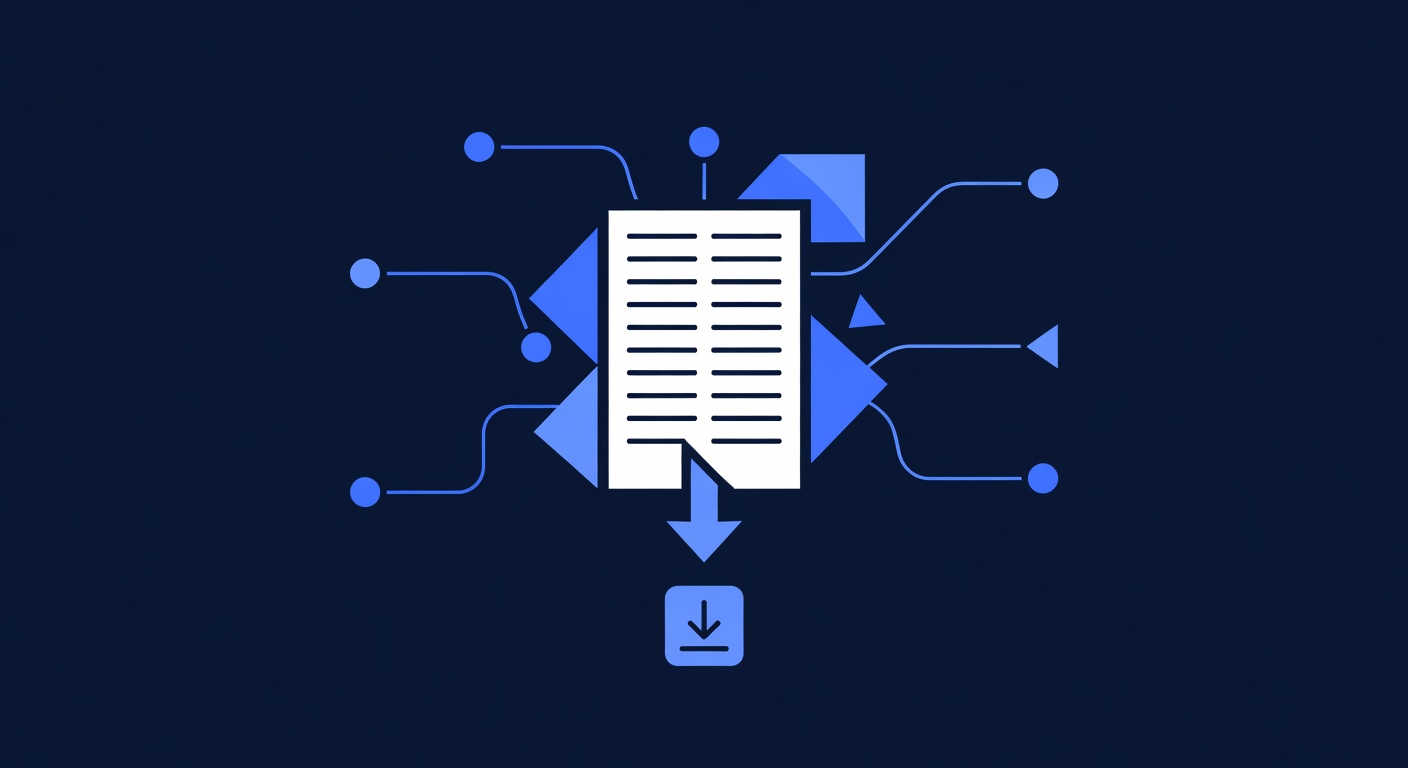
To use this checklist with every client, we’ve created an editable template in Google Docs and PDF format. Download it, make a copy for each client, and check off tasks as you complete them.
Download 14-Step Onboarding Checklist (Google Docs)
Download 14-Step Onboarding Checklist (PDF)
Get Access to All White-Label Agency Templates + Playbooks (Member Portal)
FAQ
Q: How long should onboarding take?
A: 4-5 focused hours if you know what you’re doing. This includes all 14 steps plus quality gates. Broken into two days: Day 1 (Steps 1-10, 3 hours), Day 2 (Steps 11-14, 1.5 hours).
Q: Can I skip any steps?
A: Not recommended. Each step builds on the previous one. But if a client doesn’t want payments or needs only basic CRM (no automations), you can:
- Skip Step 11 (payments) if they don’t accept online payments
- Build only 1 automation (Step 9) instead of 2 if they’re overwhelmed
- Skip custom domain setup if they use GoHighLevel’s default domain
Never skip: Steps 1-5 (account setup), Steps 6-7 (contacts + tags), or the 3 quality gates. These are non-negotiable.
Q: What if the client already has contacts in another CRM (HubSpot, Pipedrive, Salesforce)?
A: Use Zapier or a CSV export to migrate:
- Export contacts as CSV from old CRM
- Clean the CSV (remove duplicates, validate emails)
- Import into GoHighLevel (Step 6)
For large migrations (5,000+ contacts): Consider a paid data migration service; GoHighLevel has partners who specialize in this.
Q: Can I automate this checklist with software?
A: Partially. Use:
- Checklist tool (Asana, Monday, ClickUp) to track progress
- Zapier to auto-create tasks for your team when a new client signs up
- Loom to record training videos automatically (template recording)
But the hands-on setup (Steps 1-14) still requires manual work. No tool replaces human setup.
Q: What if a client is very non-technical?
A: Add 1 extra hour to the timeline. Do a live walkthrough call (Step 13) instead of just sending a video. Confirm they can:
- Log in successfully
- Add a contact manually
- Send an email
- Check automation status
Q: Can I charge separately for onboarding?
A: Yes. Many white-label agencies charge $1,500-$5,000 for full onboarding (4-5 hours × billable rate). Or include onboarding free as part of the first month’s service to reduce churn risk.
Next Steps: Start Your First White-Label Onboarding Today
This checklist is built from 200+ successful client implementations. Use it as your standard operating procedure for every new white-label client. Track completion rate, and aim for 95%+ first-time accuracy (all steps completed without rework).
Your action plan:
- Download the checklist (link above)
- Schedule your next client onboarding using this 14-step process
- Time each step to see where you can optimize
- Record your onboarding video (once, use it for all future clients with minor customizations)
- Measure results: Track how long onboarding takes, client satisfaction, and churn rate before/after using this checklist
Expected wins:
- Onboarding time: 15-20 hours → 4-5 hours (75% time saving)
- Client satisfaction: +40% in first month
- Churn rate: -25% (clients stay longer when onboarded well)
- Revenue per client: +$3K-8K annually (from faster setup → faster time-to-value → more upsells)
Ready to Scale Your White-Label Agency?
A standardized onboarding process is the foundation of a scalable agency. This 14-step checklist, combined with GoHighLevel’s white-label platform, lets you bring on 2-